
Expiry markdown: mark down stock as its expiry date nears — the recipe
A grocery, bakery or pharmacy marks down stock whose expiry date is near, so it sells before it is thrown away. The shop wants its own rule (25% off from 5 days before expiry, 50% off from 2 days) applied the same way in every store, and the cashier should not have to remember a percent. This recipe does it with the shop's own lot prices and one button. The shop gives its perishable item groups their markdown steps. A manager ticks the lots in the Batch list and presses Mark down. Your service writes each lot's own Item Price, valid until the lot's expiry date, and the till rings the lot at that price. It is for an iVendNext Partner, or the CitiXsys Consulting Team, who wants markdowns by expiry without code inside the shop.
Reference implementation: samples/s38_expiry_markdown/.
When to use it. The shop already tracks its perishables by lot, with expiry dates (Item: Has Batch No, Has Expiry Date). The till already prices a lot by its own Item Price when the shop has one, and already prints a lot's label with its price and expiry date. What is missing is the rule: which lots are inside a step today, at what price, and taking it off again. For a warning to the cashier when a shorter-dated lot is scanned, see S23 (Till guard rules); for a reminder before a lot expires, S27's batch-expiry reminder.
The four rules, here. No code runs inside the shop. One address is called, your service, and only when someone presses the button. The service writes only lots' own prices that it notes as its own: a price the shop typed for a lot is never changed, and an edit someone saved after the service read the price is never overwritten. It never changes a price after the cashier has seen it: a lot's price is set before the sale, the way the shop sets any price.
What the manager and the cashier see
-
The manager filters the Batch list on Expiry Date (this week), ticks the lots and presses Mark down, then confirms: "Mark down these lots by your item groups' steps? Each lot's own price changes until its expiry date."
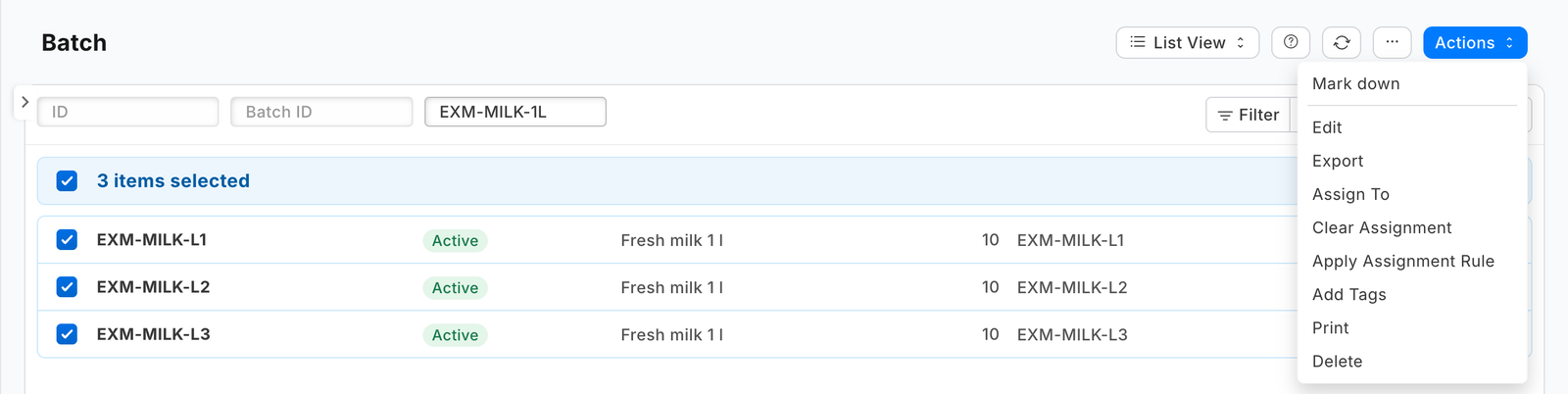
-
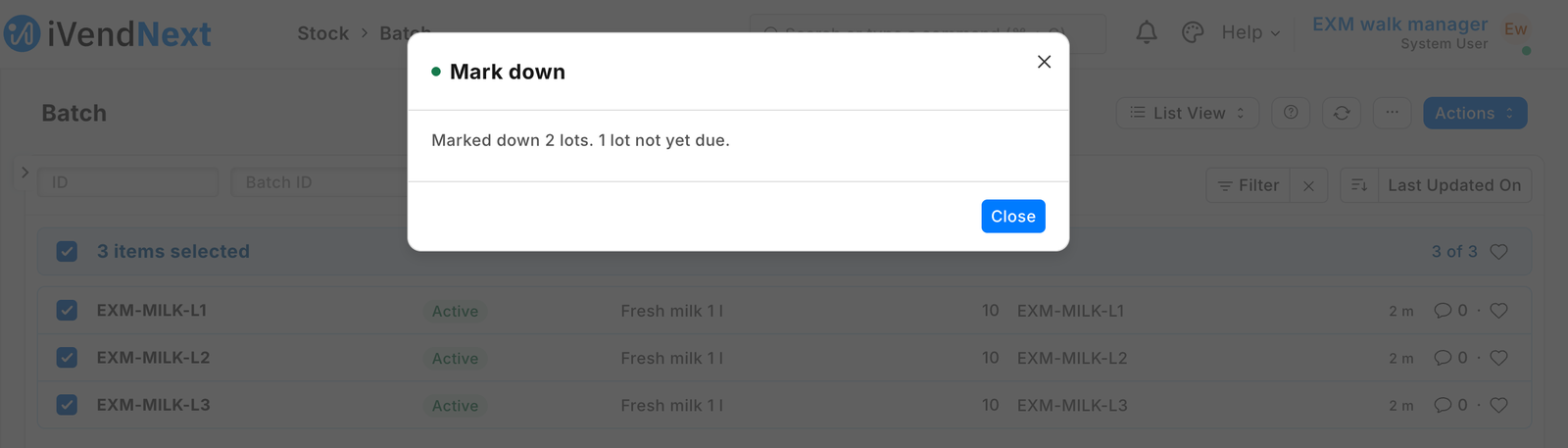
Mark down — Marked down 2 lots. 2 lots not yet due. The list reloads. Each marked lot now has its own price on the shop's selling price list: the item's price less the step's percent, rounded down to the currency's smallest unit, valid from today until the lot's expiry date, noted PP EXM: 25% off until it expires (the library's copy writes IVENDNEXT EXM: …).
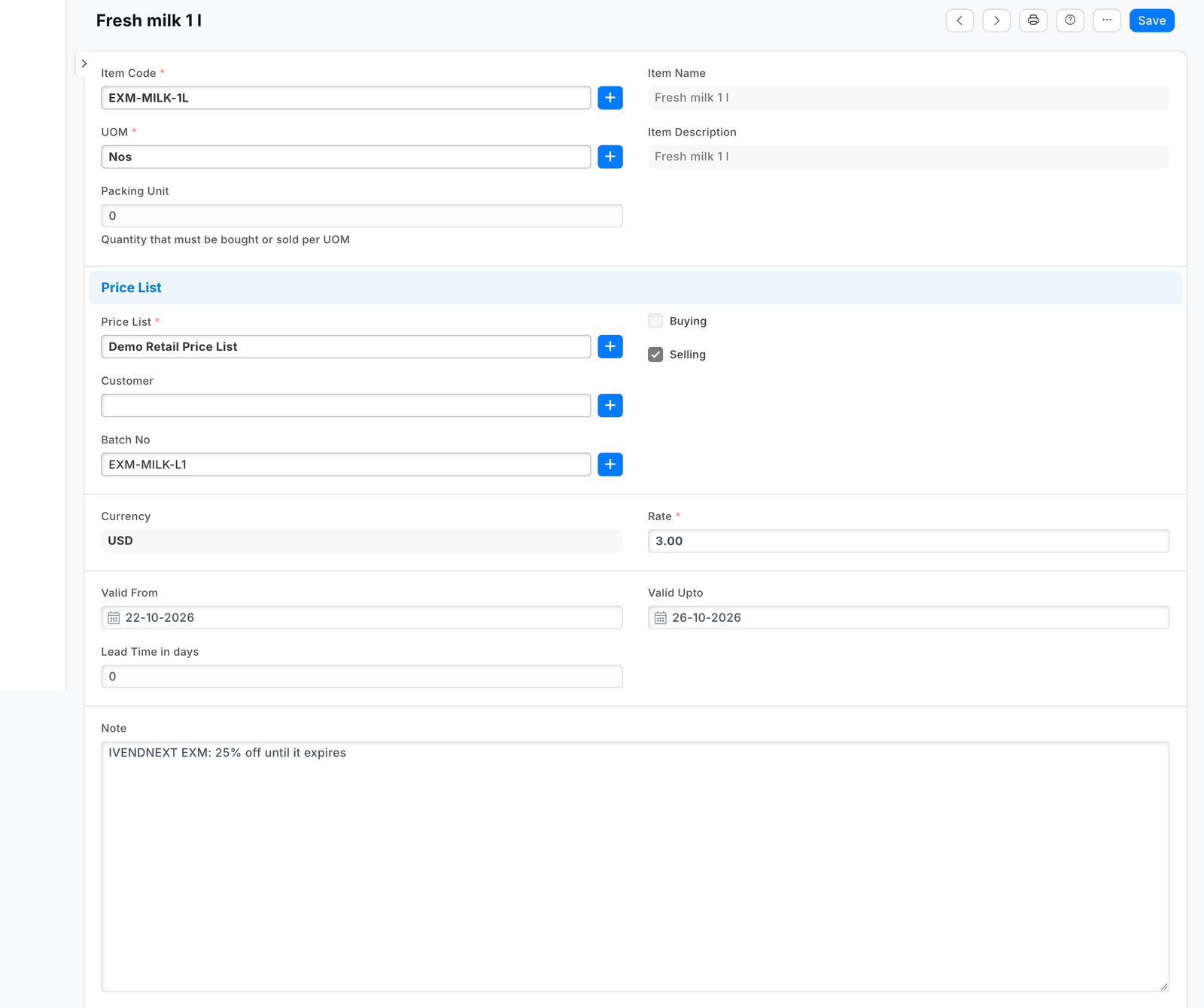
-
The manager prints the lot labels at the till (Print label, the lot chosen): the label shows the lot's price and its expiry date.
-
The cashier scans as always. A scanned lot label rings its lot at the markdown.
Pressed again, the button writes nothing: 2 lots already marked down. Pressed the next morning on the same lots, a lot that reached the last step is changed to it, and a lot past its date has the markdown taken off.
Steps
-
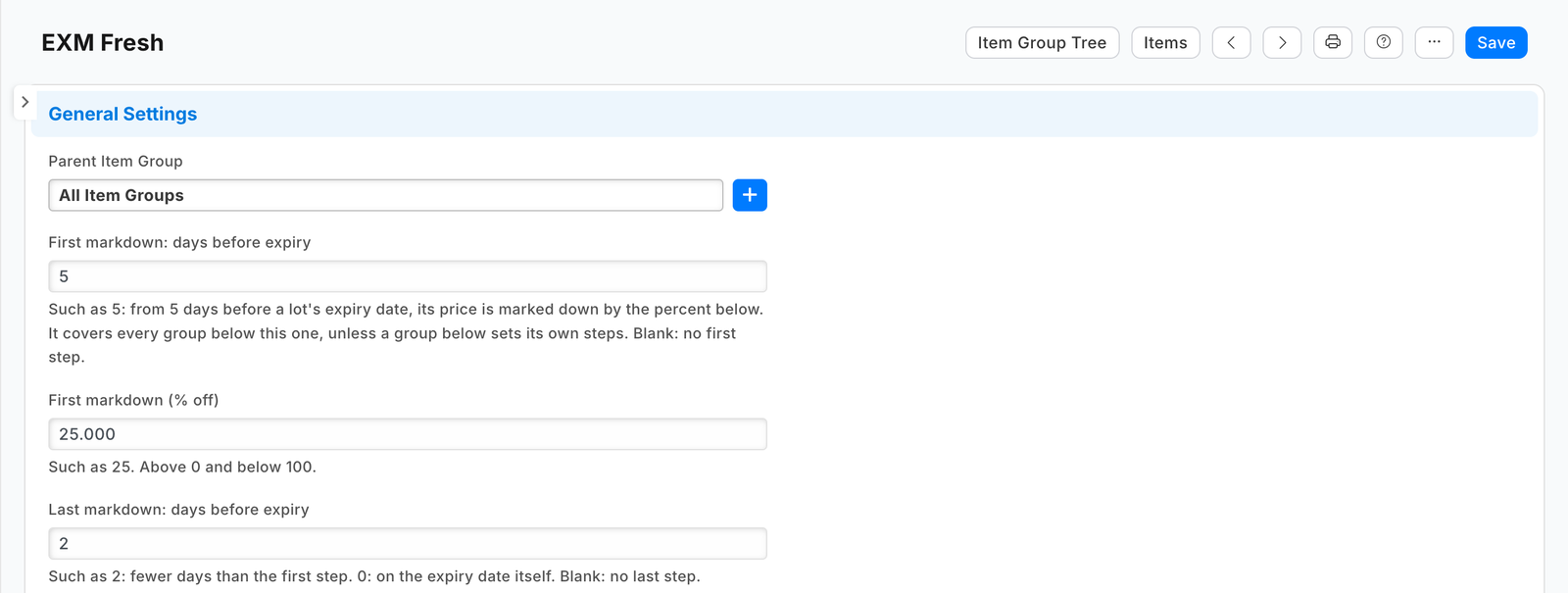
Add the steps to Item Group (two steps; a group without steps takes the nearest group above it that has some):
"custom_fields": [ {"dt": "Item Group", "fieldname": "pp_exm_days_1", "fieldtype": "Int", "label": "First markdown: days before expiry", "insert_after": "parent_item_group"}, {"dt": "Item Group", "fieldname": "pp_exm_pct_1", "fieldtype": "Percent", "label": "First markdown (% off)", "insert_after": "pp_exm_days_1"}, {"dt": "Item Group", "fieldname": "pp_exm_days_2", "fieldtype": "Int", "label": "Last markdown: days before expiry", "insert_after": "pp_exm_pct_1"}, {"dt": "Item Group", "fieldname": "pp_exm_pct_2", "fieldtype": "Percent", "label": "Last markdown (% off)", "insert_after": "pp_exm_days_2"}] -
Add a settings record type whose record Default names the selling price list the tills sell from, and the shop's hours from UTC (the shop's own day decides how many days a lot has left). See the sample's
manifest.json. -
Add the button on Batch, form and list, for the engine's role that reads Batch (Item Manager: the shop re-checks at every press that the user may read each ticked lot), sending each lot's name, item and expiry date, and the service that answers it (Desk action recipe):
"extension_subscriptions": [ {"key": "markdown", "point": "desk_action", "label": "Mark down service", "endpoint_url": "https://your-service.example/press/markdown", "timeout_seconds": 10}], "desk_actions": [ {"record_type": "Batch", "label": "Mark down", "placement": "both", "service": "markdown", "roles": ["Item Manager"], "on_draft": 1, "on_submitted": 0, "send_fields": "name, item, expiry_date", "confirm_text": "Mark down these lots by your item groups' steps? Each lot's own price changes until its expiry date."}] -
Add a feed registration for the app's user (leave it switched off): a service that serves many shops receives the user's key through it on Connect again (guide chapter 14b).
-
Write the service (
samples/s38_expiry_markdown/markdown.pyandservice/app.py, standard library). For each press:- check the signature (the subscription's secret);
- read, with the app's user: the settings record Default; its price list (a selling list that is switched on) and the list's currency (its smallest unit); the ticked lots (
item,expiry_date,batch_qty,disabled); their items' groups; the item group tree with the steps (lft,rgt); and those items' prices on the list — one list read each (GET /api/resource/<type>?fields=…&filters=…&limit_page_length=0); - for each lot: the days left (the shop's day); the steps of its group or the nearest group above with any; the step reached (the one with the fewest days the lot has reached); the item's own price valid today for any customer, per unit;
- a lot with a price the shop typed (no note of yours): leave it and say so;
- a lot past its date, with no stock, outside every step, or whose item has no price: delete your own row for it, if any;
- otherwise write the lot's own row (
POST /api/resource/Item Pricewithbatch_no,price_list_rate,valid_fromtoday,valid_uptothe expiry date and yournote), or change your row when the step moved (PUTwith the row'smodifiedas read); write nothing when it is already right; - stop starting new lots after 6 seconds (the shop waits 10), then delete up to 20 of your rows whose date has passed, anywhere, and answer
{"refresh": true, "message": …}with a count per outcome.
-
Check it before the shop:
python3 tools/check/check.py samples/s38_expiry_markdown(the shop's checker and its install's two extra refusals).
What the shop does
-
Install the app. The service and the button come in switched off. The install adds the four step fields, the settings record type and the app's role.
-
Give the app a user, as in the integration user recipe: tick Is Desk User, set no password and no User Permissions, give it the app's role alone, and generate its API key. In Role Permissions, give the app's role these rights:
Record type Right Why Batch Read the ticked lots Item Read each lot's item group (with select alone the shop answers only the fields it lists for search, which a shop may change) Item Group Read the steps, and the tree they are read up (with select alone the shop lists the names only, and every lot reads as having no steps) Price List Read the settings' list and its currency Currency Read the currency's smallest unit Item Price Read, Write, Create, Delete the item's price, and each lot's own price The role reaches every price on every list: give it to the app's user and no one else.
-
Choose the user on the app's feed. A hosted service: press Connect again on the app.
-
Fill in the settings (Default: the price list, the hours from UTC) and give the steps to the perishable item groups.
-
Switch the service on in Retail Extension Subscription (read what it is sent, tick the consent), then the button in Retail Desk Action.
Limits
- A press, once a day. There is no run without a press: the manager who prints the lot labels presses it.
- Lot-tracked items only. An item with no lots has no expiry date.
- The till offline. While any lot on the site has a price of its own (expired ones included), the shop's tills do not sell a lot-tracked item offline: the till's offline price list has no lot in it, so it refuses the line rather than promise one price and book another. Expired prices are removed by the next press, up to 20 a press; the tills sell lots offline again from their next start once none is left.
- What the till shows before it prices the line. The item's tile and a scan can show another lot's price; the line and the receipt carry the right one.
- A line from several lots is priced once; scan each lot's label. A customer with their own price pays it on a scanned lot, not the markdown.
- A newer item price. A new price for the item, or one dated to start later, takes the markdown off a scanned lot label from that day until the next press, which moves the lot's price to it.
- A price you edit on the app's row (its note starts with the app's prefix) is the app's again at the next press: write your own note to keep it.
- Which lot rings. A scanned lot label names its lot. An item's own barcode lets the shop pick the lot (Stock Settings Pick Serial / Batch Based On): with Expiry, the lot nearest its date sells first.
- Regulated prices. Put steps only on item groups whose every item may be sold below its price: a group below takes its parent's steps, and a step of 0 is no step, so a group of price-regulated medicines must not sit under one with steps.
- The first press. After the first press, restart the tills (or sign them in again) before they go offline: a till started before any lot had its own price keeps selling lots offline at the item's own price, above the markdown on the label.
- No answer in time. If the service does not answer in time, some lots may already be marked down: press again, and a repeat writes nothing.
- One set of steps per item group, one price list per site; up to 100 lots a press.
- Removing the app leaves the lots' prices it wrote: delete them first (Item Price filtered on Note); nothing removes them after, and while they exist the tills do not sell lot-tracked items offline.
Technical notes
What the service sends and writes
- Each press sends the ticked lots' names, items and expiry dates, the pressing user (an e-mail address) and the language. The consent the System Manager reads lists exactly these.
- The service reads the settings, the price list and its currency, the lots, their items' groups, the item group tree and those items' prices on the list, and writes each lot's own Item Price. It keeps nothing of a press; a hosted copy holds each shop's press secret and its user's API key from Connect again until the shop removes the app.
- The rounding is down, to the currency's own digits from its number format (
#,###.##→ 2,#,###.###→ 3,#,###→ 0; the yen counts 100 sen and shows none), so the customer never pays more than the step promises at that grain. The rounding is to the currency's own digits (its number format); a site whose currency precision is set to fewer digits rounds the line again, which can add up to half of its smallest unit. - An edit saved meanwhile is never overwritten: an update carries the row's
modifiedas read, and the shop refuses a stale one (TimestampMismatchError); the answer asks for another press. Two presses that create the same lot's row at once: the shop refuses the second as a duplicate, and its answer asks for another press, which finds the row right. - The shop's own words never reach the user. The service branches on the error's type (
exc_type), never shows its message.