
13a. Screens and user experience
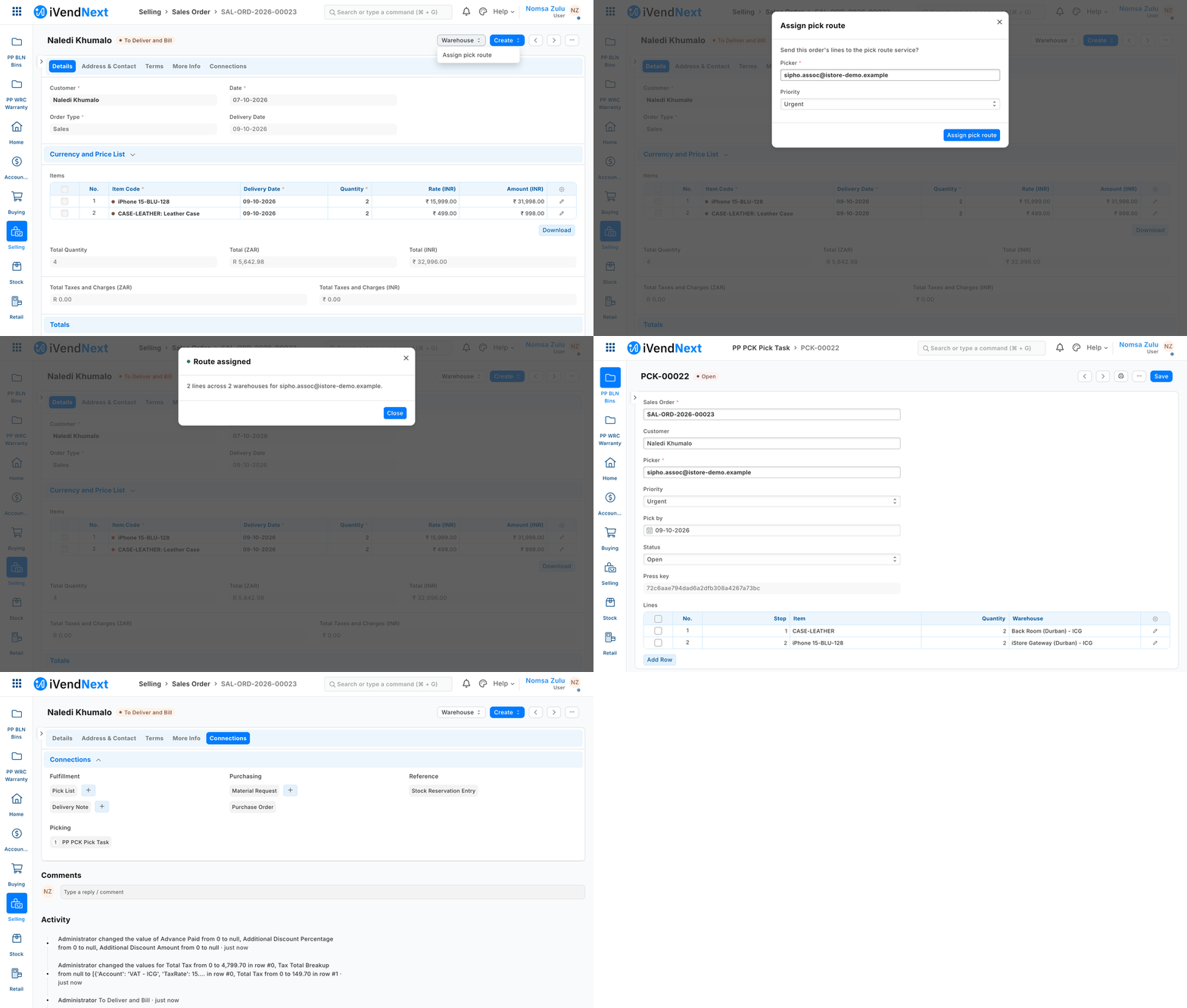
A stock user presses Assign pick route on a Sales Order; the partner's service creates a pick task, which opens and is listed under the order. Every screen is a native Desk screen.
How to give your users screens without building screens: your records get the native iVendNext screens, and you add a page of your own only when nothing native will do.
For: a builder whose project gives people something to look at or press — records to edit, a report, a button, a page of their own.
Reference implementation: Assign pick route (a Desk action, recipe) and an order board (a page inside our frame, recipe); a standalone portal with Sign in with iVendNext (rung 5, recipe). Today, the manifests in ../samples/s2_bins/manifest.json and ../samples/s1_warranty/manifest.json already give their record types native screens.
When to use it
Whenever your project has a user.
Start from the rule: the data users touch lives in the customer's iVendNext as declared records, so its screens are the native iVendNext Desk screens. Your service holds the logic. It usually needs no screen at all.
The screen ladder
Use a rung only when the one above cannot do the job.
| Rung | What you get | Looks like | Where it runs | Available |
|---|---|---|---|---|
| 1 | Native screens for every record type your manifest declares: form, list, report view, search, print, workflow buttons | iVendNext Desk, exactly | the customer's site | ✅ |
| 2 | Desk configuration: workspaces, reports, number cards, charts, dashboards, list settings, and Connections links that list your records under one of ours (pick tasks under a Sales Order) | native | the customer's site | ✅ by hand in Desk · in a manifest (manifest v2 kinds reports, number_cards, dashboard_charts, dashboards, list_settings, links; chapter 7) |
| 3 | Declared actions: a button on a form or a list; the inputs you declare drawn in the native dialog; the record sent to your service; your answer shown in our dialog — a message, open a record, open a page, or refresh | native | your server, logic only | ✅ recipe |
| 4 | Your page inside our frame: on the till, as a sheet; on Desk, inside a page shell. You receive a signed, one-time context (the user, the record, the theme); the customer allows your address and consents; your page cannot reach our screen or the user's session | our frame + the partner kit | your server | ✅ recipe |
| 5 | A standalone app of your own, built with the partner kit, with Sign in with iVendNext and links that open Desk records | the partner kit | your server | ✅ samples/s13_portal/, recipe |
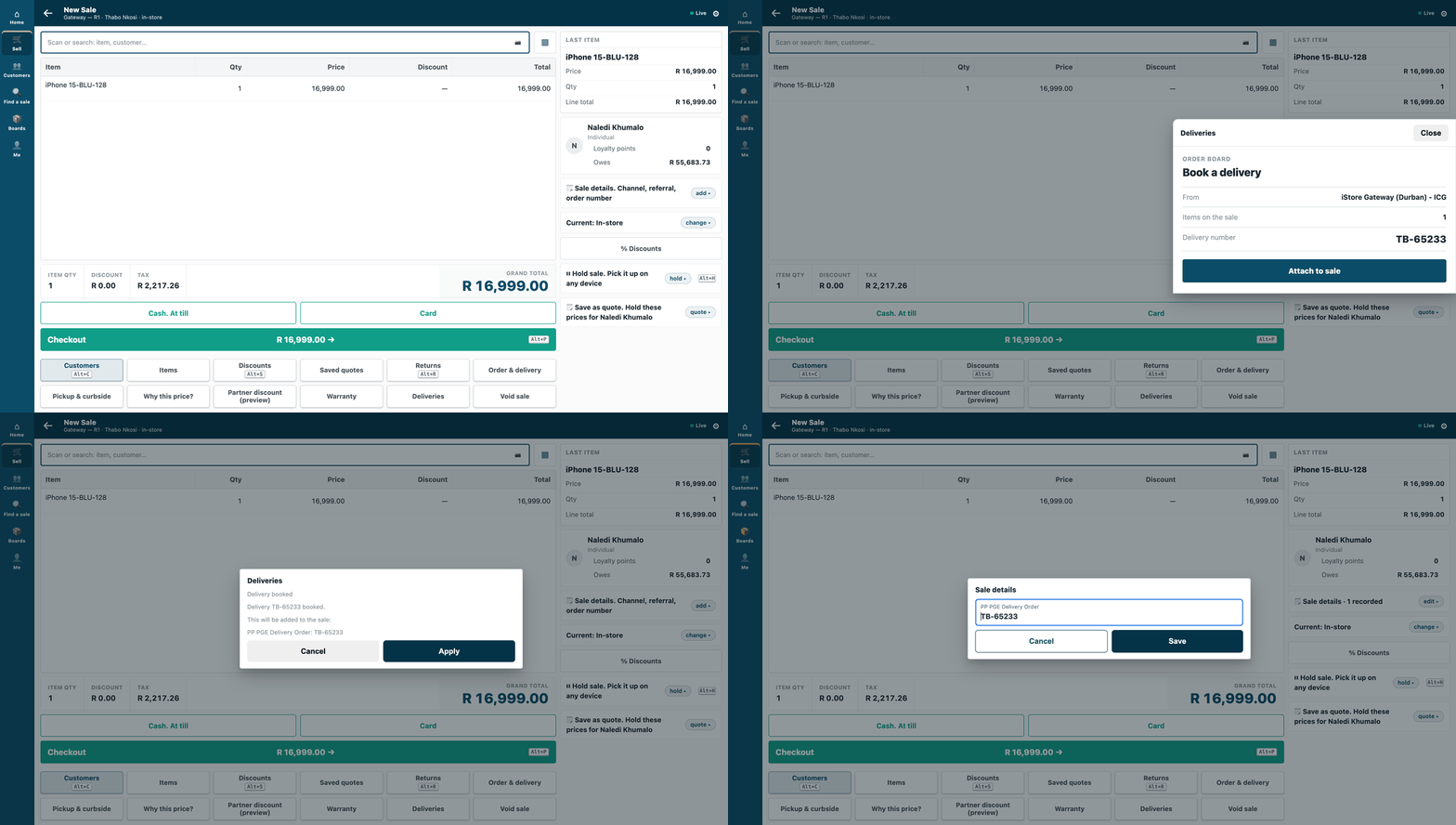
Rung 4 on the till: a cashier presses Deliveries, the partner's board opens as a sheet over the sale in the till's own look, and the till puts the delivery number on the sale.
Steps
- List every screen the project needs, and put each on the lowest rung that does the job. Most land on rungs 1 and 2.
- Declare your records in a manifest (chapter 7). Each gets its form and list with no code.
- Add the Desk configuration: a workspace for your users, a report or two, a Connections link from the record your users start from.
- Approvals are workflow states (below), with native workflow buttons.
- A button that asks your service to act is a declared action (rung 3), never a script on the form.
- Only if a screen cannot be native, a page inside our frame (rung 4) or a standalone app (rung 5), styled with the partner kit.
- Run the screen check on each page you ship:
tools/check_kit.sh your-page.html(tests, below).
Approvals: workflow states, with four safeguards
Your records are approved by moving through workflow states (Draft → Approved → Reversed, say). iVendNext enforces each move on the server: who may make it, and no approving your own record unless allowed.
But who may edit a record while it sits in a state is checked only in the browser. A determined user with write rights could change it through the API. Build for that:
- act once, on the move — your service acts when the record reaches Approved, and keeps its own copy of what was approved;
- turn change tracking on for the record type, so every edit is recorded;
- keep write rights narrow — only the roles that must edit;
- reverse with a state — a Reversed state your service acts on, never an edit.
Where a customer wants a hard lock, a save rule can lock a field from a workflow state on, checked at every save (chapter 9). Submittable record types (the kind that post to the accounts or the stock ledger) cannot be declared by a manifest; approvals use workflow states instead.
Worked example: Assign pick route on a Sales Order
-
Your manifest declares a Pick Task record type and a Connections link from Sales Order to it.
-
A declared action, Assign pick route, appears on a submitted Sales Order for the warehouse role. The native dialog asks for the picker.
-
Your service receives the order and the picker, works out the route from the bin records, and creates the Pick Task through the API.
-
Our dialog shows your answer and opens the task. The task appears in the order's Connections panel.
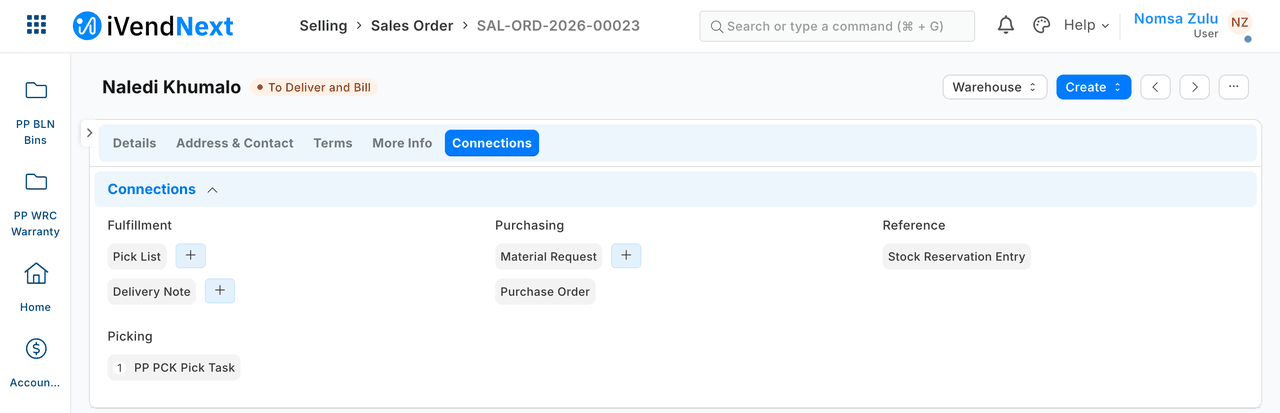
The order's Connections panel: the task is listed under Picking.
-
Every screen the warehouse sees is native or ours. You wrote no screen.
All of it ships today: the Connections link (steps 1 and 4) and the declared action (step 2). A manifest declares the button as a desk_actions entry answered by one of your services (chapter 7), and samples/s16_pick_route/ is the worked version.
The partner kit
Free to use, and ours: our own design system, packaged for builders.
- design tokens and components as a versioned style kit with a little JavaScript, and no licensed dependency;
- a Desk-look family: form sections, field controls, link search, table, buttons, dialog, toast, status pill, empty and error states, a list with filters;
- page templates: a Desk-style page, a till sheet, a portal;
- dark mode, right-to-left, and the customer's own till theme.
Your pages match the native Desk look, so the customer sees one product.
Sign in with iVendNext
A standalone app signs the user in with iVendNext (authorisation code with PKCE). Your app then acts with that user's own permissions — never more. The recipe is recipes/portal.md; the sign-in itself is recipes/sign_in.md.
What is refused, and why
- Your JavaScript inside Desk forms, lists or the till. It would run in every user's browser, administrators included.
- A screen of your own for data that lives in the customer's site, when a native one would do. The customer's people already know the native screens, and the data stays reportable.
- Your own colours and fonts outside the kit's tokens. One product, one look.
- A page that reaches our screen or the user's session. Your page gets the signed context and nothing else.
When your service is down, and when the till is offline
- Rungs 1 and 2 need nothing from your service: the screens and data are in the customer's site.
- A declared action with your service down tells the user "… did not answer in time. Check the record before you try again." It never claims nothing changed: your service may have written before it went quiet (chapter 9).
- Your page with your service down — as designed — shows our frame's own unavailable state, never a broken page inside our screen.
- On an offline till, a page answered from your server is not offered.
The tests
The screen check is a script you run yourself: tools/check_kit.sh your-page.html. It looks at:
- the kit version your page loads: it must be your own copy of the kit, at the version this kit is;
- tokens only — no stray colours or fonts;
- contrast, on a text colour and a background your page sets together, in the light and the dark look (a colour set alone is not judged);
- right-to-left: the page is drawn both ways; boxes must land where a mirror puts them, margins and paddings must swap sides, and nothing may run off the edge or have its text pinned to one side.
A review of each screen against the native look is a person's step. The script does not do it. Running the check on a submission at our end waits on how a submission reaches us, which the kit does not cover yet (chapter 17).
For approvals: a move by the wrong role is refused; your service acts once when a record reaches Approved, even if the move is saved twice; a Reversed record is undone by your service.
Technical notes
The pictures
Both samples were walked on our test bench on 2026-10-07, iVendNext POS app at 8dc36aab8. S16's frame is Desk, a 1440-wide window; S17's is the till, /pos?frame=terminal in a 1440-wide window. Each GIF is built from the same screens as its sample's stills, uncropped.