
6. Till keys
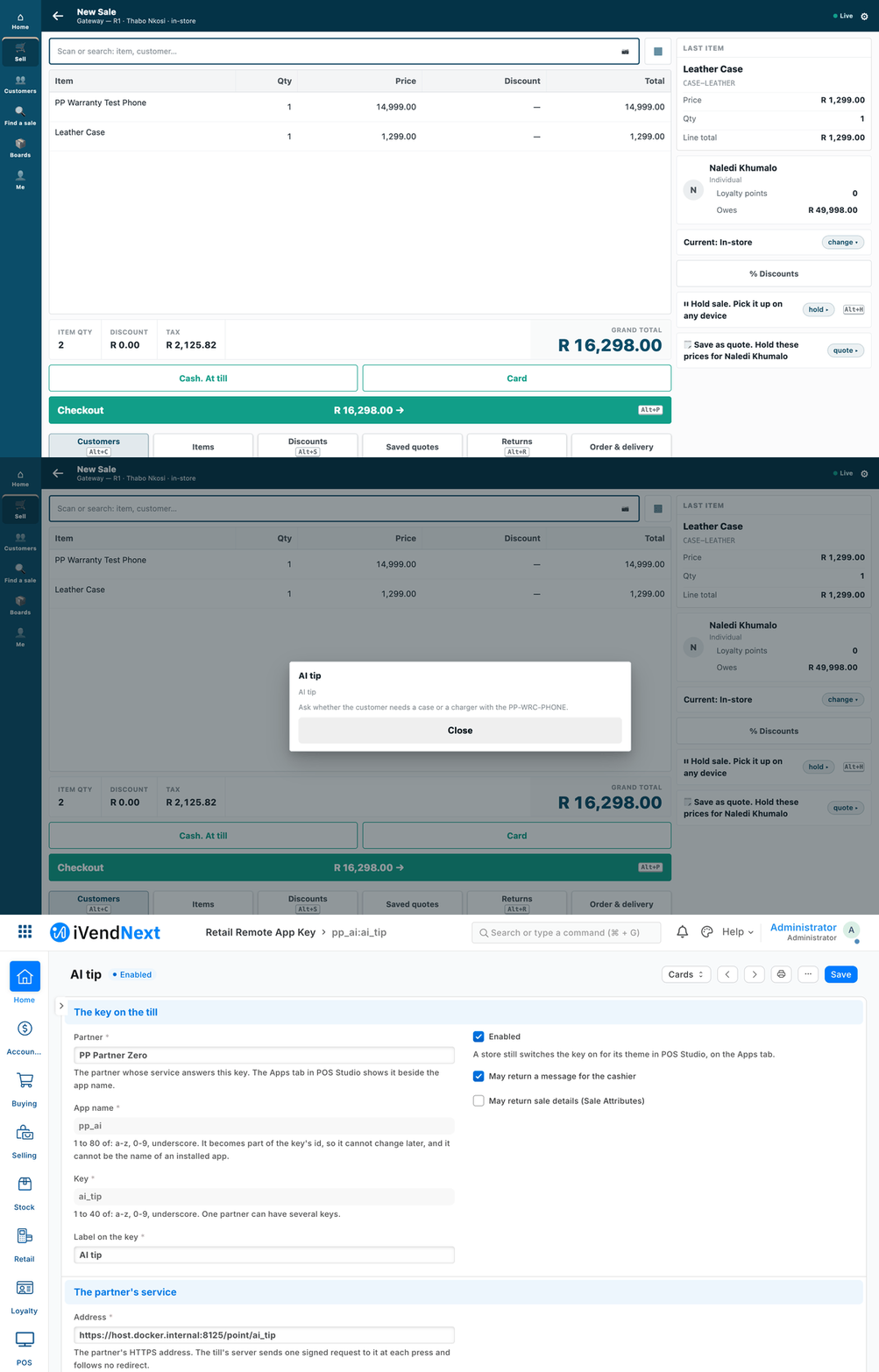
A cashier presses a partner's AI tip key during a sale; the partner's server answers, and the hint shows in the till's own sheet (sample S6).
A till key lets the cashier see an answer from your server during a sale: a warranty, a member's balance, where an item sits. This chapter is for a developer who builds the service behind that key.
Reference implementation: A till key, step 6 (the answer you give, from your own server); an AI-written hint is the same key with a model behind it, in A till key that asks an AI model · samples ../samples/s1_warranty/ (core.py, remote/) and ../samples/s2_bins/ (core.py, service/, and the key declared in manifest.json).
When to use it
Rung 3 of the ladder (chapter 3), after configuration (chapter 4) and an outside app (chapter 5). The cashier taps a key; the till calls your HTTPS service with the sale as it stands; you answer with a message to read, or sale details the cashier applies. It never changes a price, a total or a payment. Python that runs inside the shop is not a partner route (chapter 3).
Steps
-
Know what the till sends you. It is read-only:
{"sale_ref": "…", "store": "<warehouse>", "pos_profile": "…", "company": "…", "currency": "ZAR",
 "operator": "<user>", "customer": "<customer or null>",
 "lines": [{"item_code": "…", "qty": 1.0, "uom": "Nos", "luid": "l0"}]}
⛔ No prices, no totals, no serial numbers. If you need a serial, ask the cashier on your own page, or read the booked sale afterwards (chapter 5). The till sends what is on the device, so never grant value on this context alone.
-
Write your logic once, as a function with nothing from iVendNext in it: the context and your own reference data in, the answer out. Record a few real contexts and test against them without a shop:
python3 -m unittest discover -s samples/s1_warranty/tests -p 'test_core.py' -
Answer in the till's closed vocabulary. Two kinds, nothing else:
{"message": {"title": "Warranty", "body": "PP-WRC-PHONE: 24 months; AIRPODS-3: 12 months", "level": "success"}}
{"sale_attributes": [{"sale_attribute": "<an active Sale Attribute>", "attribute_value": "…"}]}
The limits: title up to 60 characters, body up to 280, level
info,successorwarning, at most 20 sale details. One bad part refuses the whole answer: the till never applies half. Keep a long answer inside the cap yourself (the warranty sample ends with "… and N more"). -
Put it behind HTTPS and check every call. The service is a few lines around your function:
def answer(context):          # the whole binding
    codes = sorted({l["item_code"] for l in context.get("lines") or []})
    terms = {**MY_TERMS, "item_group": tenant.item_groups(codes)}   # your own store + one API read
    return core.warranty_answer(context, terms)
What each call looks like, and what you check:
- Each call is one
POSTwith the headersX-iVendNext-Timestamp,X-iVendNext-SignatureandX-iVendNext-Request-Id, and the body{"app", "key", "returns", "context"}. - Verify it against the raw body before parsing. The signature is the base64 HMAC-SHA256 of
<timestamp>.<raw body>with the secret you and the shop share. A timestamp more than five minutes from your clock is refused. - Answer a JSON object of at most 64 KB, well inside the time to answer.
- Only HTTPS is called, with the certificate checked against your host name. An address that resolves to a private network is refused unless the shop's site is set to allow it (for test sites).
- Each call is one
-
The shop registers the key. A System Manager opens Retail Remote App Key in Desk and adds one record per key: your name as the partner, an app name, the key, its label, what it may return, your HTTPS address, the signing secret, and the time to answer: 3 seconds unless raised. Design for 3. The ceiling depends on who sets it: the record itself accepts at most 10 seconds (this step, filled in by hand in Desk), and a manifest may declare at most 5 (our checker refuses more). The administrator ticks the customer's consent to send the listed sale details to your address. Then the store switches the key on in POS Studio → the theme → Apps → tick the key → Save. The counter layout shows it; the phone layout shows no key. If your package is a manifest, it can declare the key too (chapter 7): it is installed switched off, with consent not given.
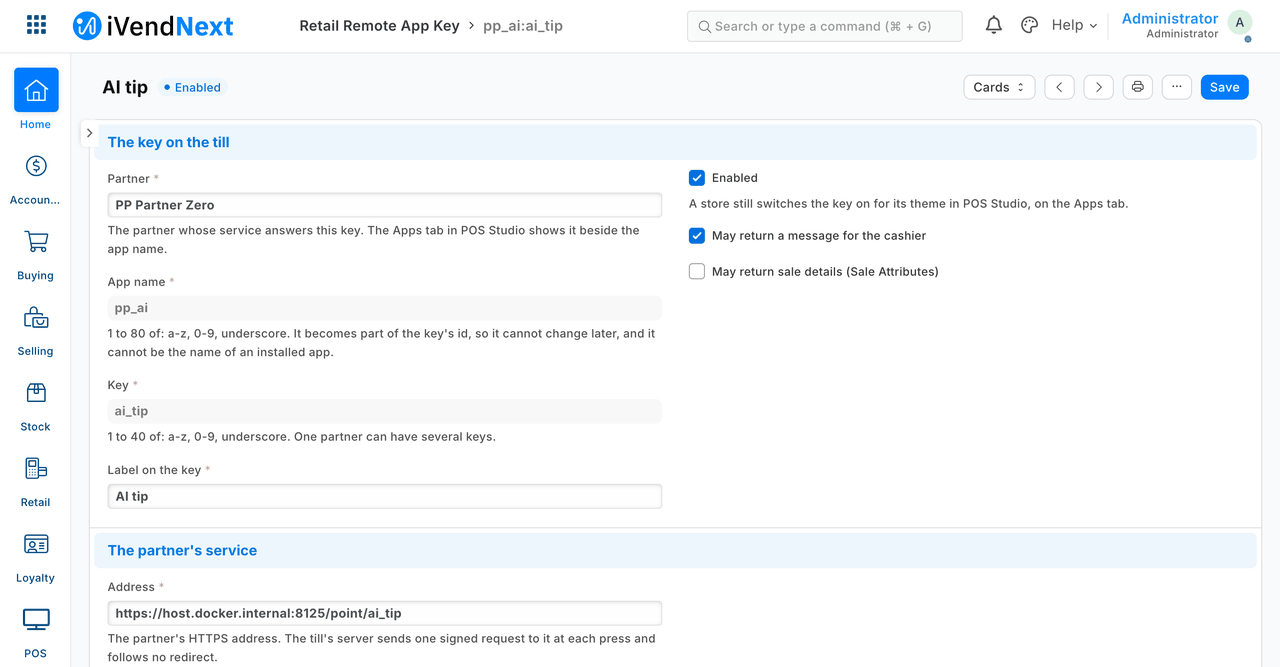
A till key's record in Desk: switched on, it may return a message only, and it calls the partner's HTTPS address (sample S6; the picture is cut above the signing secret).
-
Test your service's failures before the shop does. Make it slow, make it fail, send the wrong shape. Check that the cashier would read one of the three sentences below and nothing would be added to the sale. The warranty sample's fault routes (
remote/wrapper.py) do this; they are on only when its test runner starts it, and your copy deletes them.
What is refused, and why
- Any answer kind but a message and sale details. Nothing else reaches the sale.
- Money. No price, discount, tax or total, ever (chapter 3).
- Half an answer. One bad part, or a part the key did not declare, refuses the whole.
- A slow answer. The till enforces the deadline; your service does not get to hold the cashier.
- Plain http, a bad certificate, a private address, as step 4 says.
When your service is down, and when the till is offline
Every failure ends in a refusal in words, with nothing added to the sale. These are the words the released key publishes:
| What happens | The cashier reads |
|---|---|
| Your service takes longer than the time to answer, or trickles its reply | "Warranty did not answer in time. Nothing was added to the sale." |
| Down, a non-2xx status, a redirect, a bad signature | "Warranty could not finish. Nothing was added to the sale." |
| Not JSON, oversize, a malformed or partial answer, an undeclared kind | "Warranty answered in a way this till cannot use. Nothing was added to the sale." |
Offline: the key works only online. On an offline till it is dimmed, and the sale goes on without it.
Technical notes
Sources for the plain layer
- The refusal words: the stand-in caller below writes the same words the released key publishes.
- The manifest-declared key (step 5): installed switched off, consent not given, and read back on the test shop (2026-10-07).
- Offline: by the till's own documentation the key is dimmed on an offline till and the sale goes on without it. This was not run: the test shop had no offline till.
What the kit has proven
- The answer, through our stand-in for the till (
../tools/standin_caller/caller.py): 13 of 13 cases behaved as stated: one good answer accepted, and twelve failures each refused whole. A service that slept 5 seconds was refused at 3.01; one that sent its headers a byte at a time was refused at 3.01; a wrong signature, a redirect, an oversize reply and a service that was down were refused too. - The right answers. The warranty sample's six cases (covered, not covered, unknown item, empty, sixty lines, duplicates) and the bin sample's "Where is it?" key (3 of 3 baskets) came back accepted by the till's own validator. In the AI-hint sample's run that validator was also shown refusing a 61-character title and a 281-character body.
- The stand-in is ours, not the till. It follows the released key's published contract. It has no read-me of its own, and unlike the till it allows plain http and private addresses.
What it has not
- A refusal seen on a real till. A press through the released key was walked once, and answered (our test bench, 2026-10-07: S6's AI tip, pressed by a cashier on the till over HTTPS, the bench's server trusting a throw-away certificate for the run;
recipes/ai_till_key.md); the till's refusal sentences were not seen on its screen. - Registering the key and switching it on by hand (step 5) in Desk: never done. The record type is there (the iVendNext POS app at
8dc36aab8carriesretail_remote_app_key; row BUMP), and two bench runs saved a key record and its theme row by the record's own save (G5b, runpp-20261007T014940Z-64695; S6's walk, row SHOTS2 hold 1, runpp-20261007T105308Z-98631). The Desk form, its consent tick and POS Studio's Apps tab were not walked. - A manifest-installed key pressed from a physical till. The install was read back on the test shop (chapter 7); a press from a physical till was not tried.
- The "cannot use" sentence, end to end through the stand-in.
- A certificate a shop trusts by default, at a real till: the walk's was trusted for the run only.
- Offline, as above.
The pictures
- Both pictures are from sample S6, walked in a real browser on our test bench on 2026-10-07, iVendNext POS app at
8dc36aab8: the till frame (/pos?frame=terminal, 1440 wide), then Desk. The hint is the stub provider's (no real AI model). - The Desk picture (step 5) shows the key's record as the S6 bench run saved it, consent ticked, as a System Manager does there. It was not filled in by hand in Desk, so it does not discharge Registering the key and switching it on above.
See also
3. The ladder and the four rules · 5. Outside apps and the event feed · 7. Manifests · 13. AI on iVendNext