
(d) Screens you can add, and record types
Part 4 of 4 · What you can use: API endpoints, record types, fields and screens
Back: (c) What a manifest can addNext: Build your first app
(d) Screens you can add
The screens an app can show: on the till, in the back office (Desk) and on its own. Your JavaScript never runs inside our screens; your screens come through these doors (rule 4 of chapter 3).
| Where | The screen | What you can show | The door | The recipe | Picture |
|---|---|---|---|---|---|
| On the till | A sheet over the sale | Your page as a sheet over the sale, in the till's own look; it answers once, with a message and sale details | partner page | recipe | picture 1 |
| On the till | The till's message at a key | The till's own message from your service, with details added to the sale | till key | recipe | picture 2 |
| On the till | A sheet at the scan | The till's own sheet with your question, a refusal, a notice, or values on the line | capture | recipe | picture 3 |
| On the till | A sheet when a customer is added | The till's own sheet with a one-time code to enter, a refusal or a notice | capture | recipe | picture 4 |
| On the till | A sheet when a quantity changes | The till's own sheet with your question, a refusal that puts back the last allowed quantity, or a notice | capture | recipe | picture 5 |
| On the till | Extra fields | Up to three more item fields and three more customer fields on the till's screens, each called by the retailer's own word | field rules | recipe | picture 6 |
| On the till | A question or a refusal before Pay | A question, a refusal in your own sentence, or a manager's approval, before the sale is paid | check before payment | recipe | picture 7 |
| In Desk | A button and its dialog | A button on a form or a list; the inputs you declare in the native dialog; your answer in our dialog | Desk action | recipe | picture 8 |
| In Desk | Your own page | Your page inside Desk's page frame, with a signed one-time context | partner page | recipe | picture 9 |
| In Desk | Native screens for your records | A form, a list, reports and print for every record type your manifest installs, exactly as Desk draws its own | manifest | recipe | picture 10 |
| In Desk | Your workspace | Your app's page of shortcuts, lists and figures, opened from the App library | manifest | recipe | picture 11 |
| On its own | A standalone page | Your own app, with Sign in with iVendNext and links that open records in Desk | your own app | recipe | picture 12 |
Every picture is a screenshot taken on our test bench, of a kit sample unless its caption says otherwise. Find the moment first; the door follows.
Picture 1
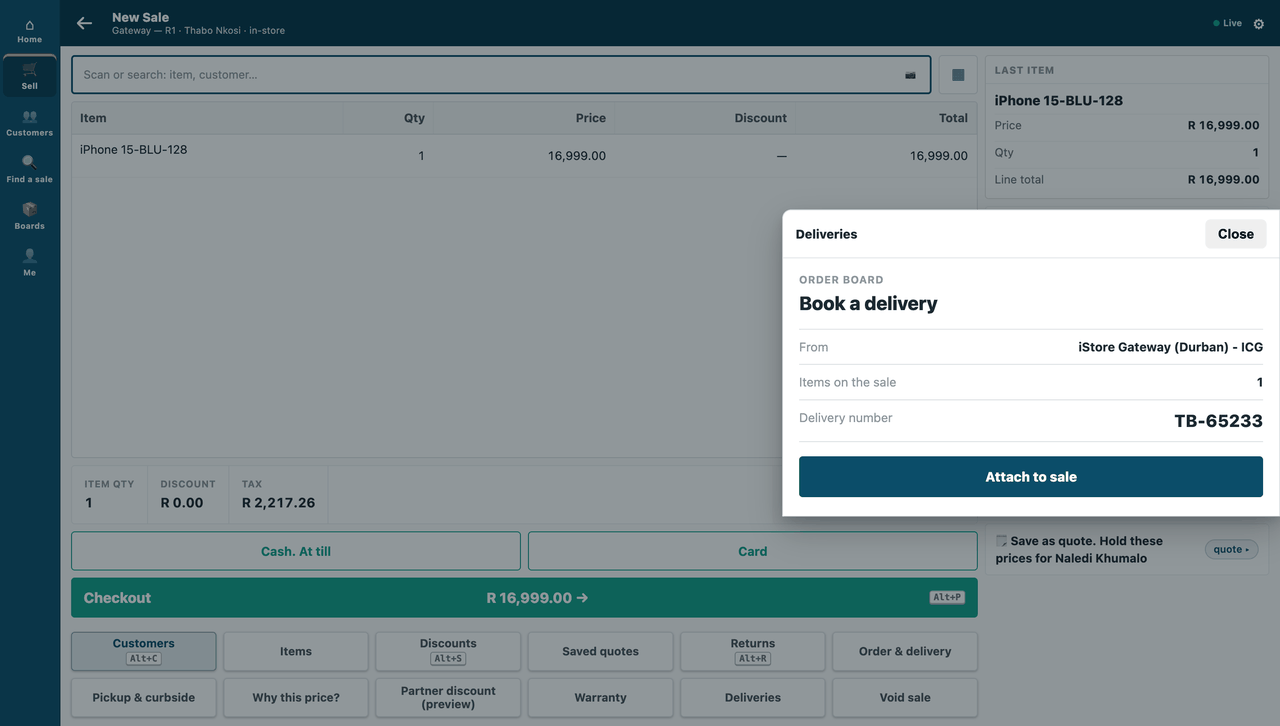
On the till, a sheet over the sale: sample S17.
Picture 2
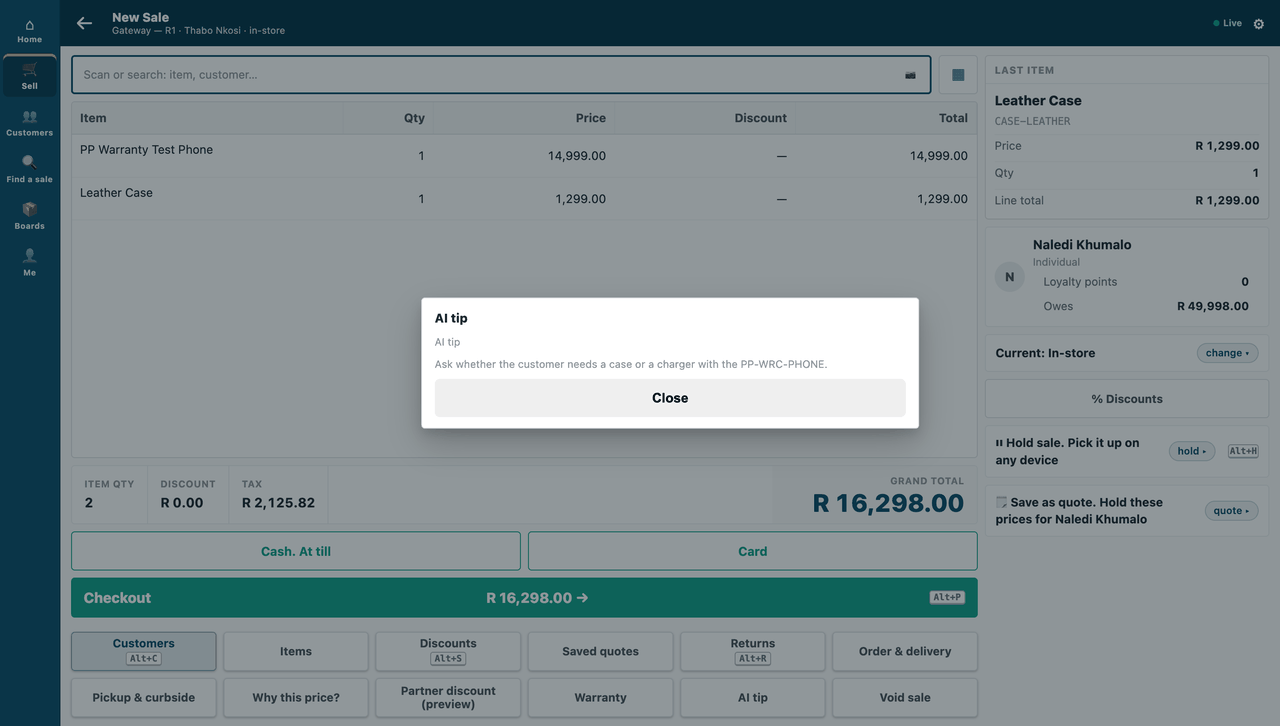
On the till, the till's message at a key: sample S6.
Picture 3
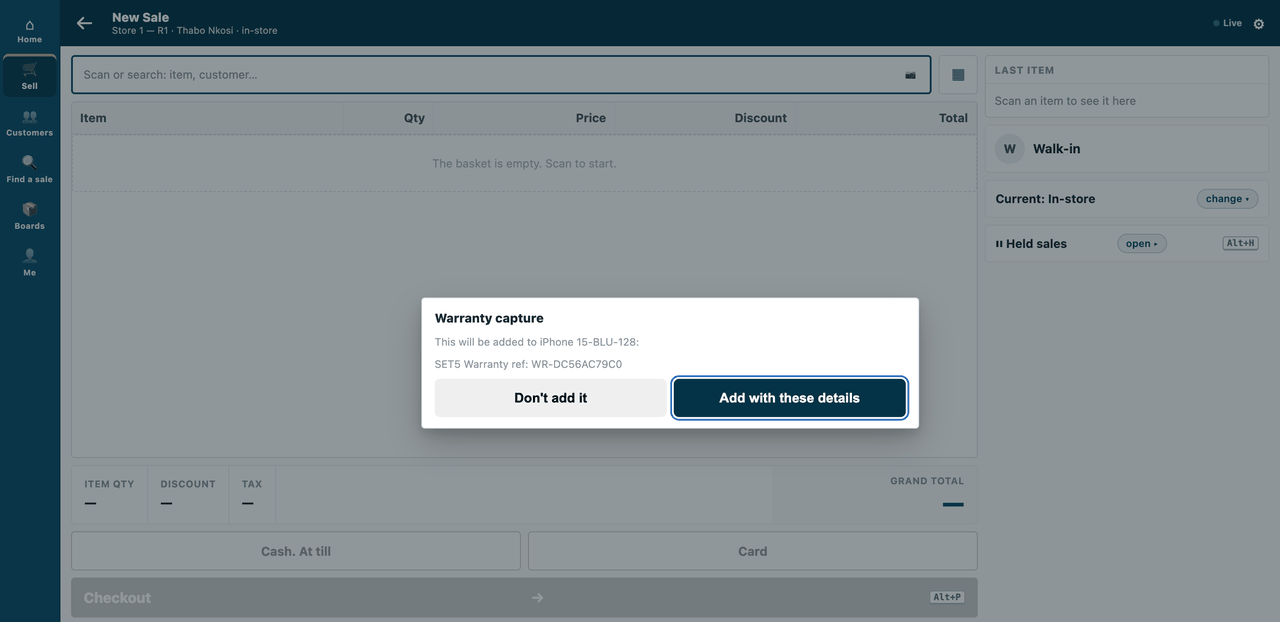
On the till, a sheet at the scan: sample S20.
Picture 4
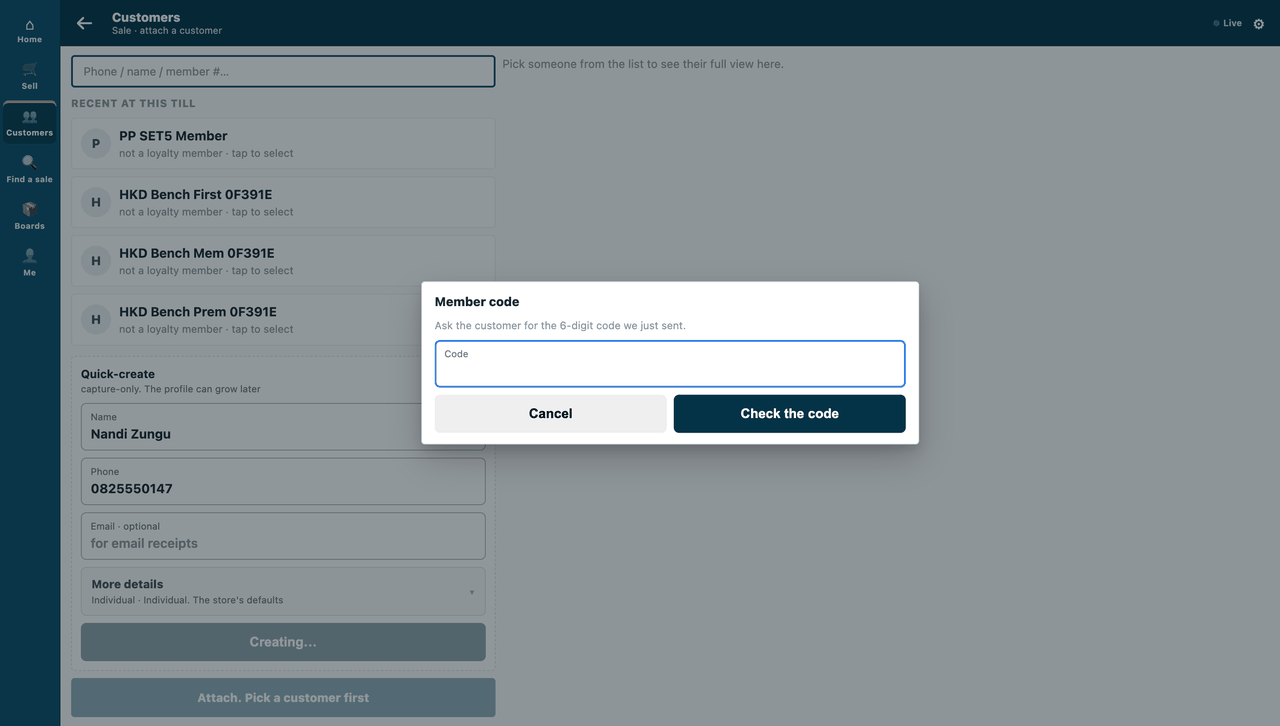
On the till, a sheet when a customer is added: sample S20.
Picture 5
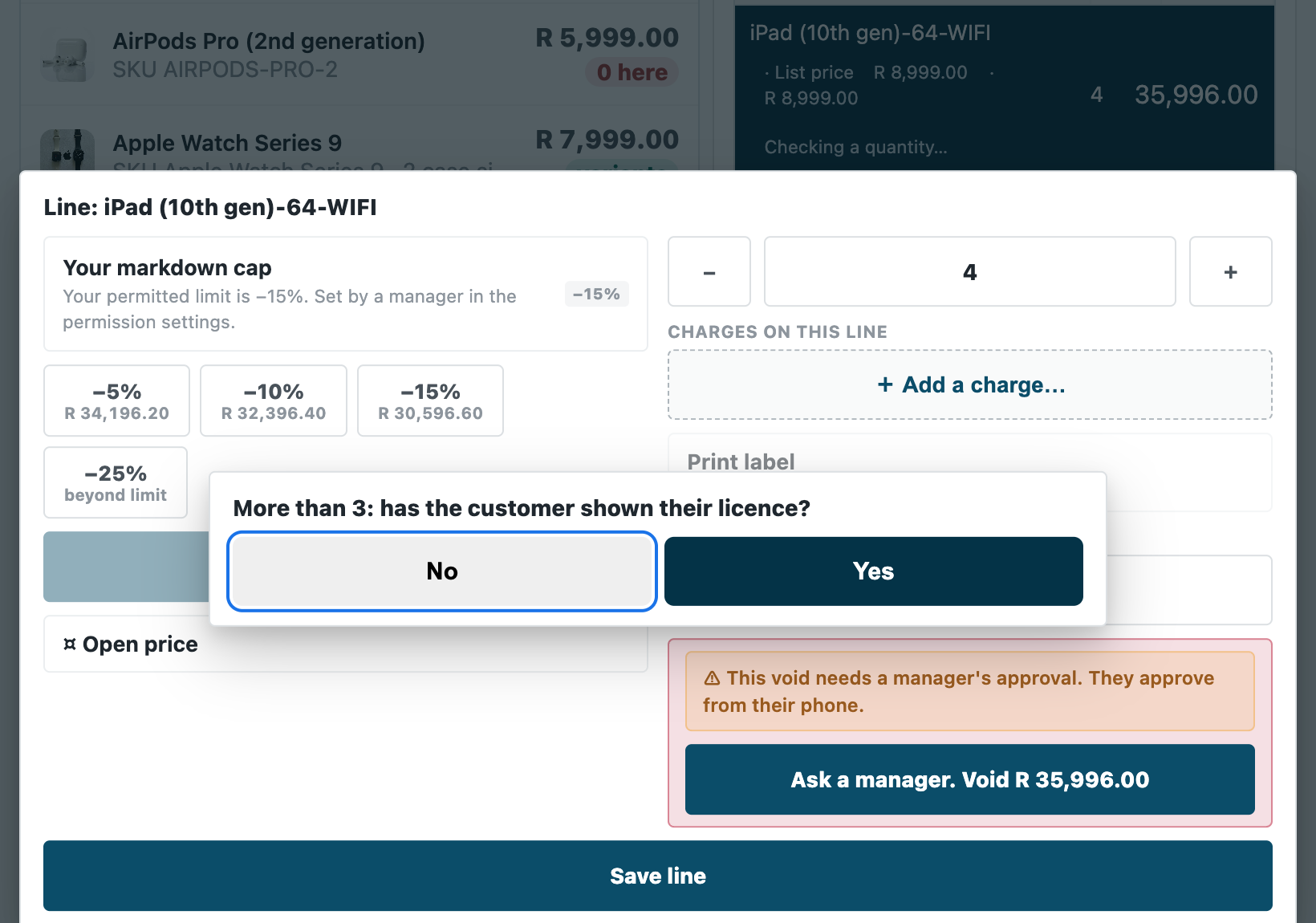
On the till, a sheet when a quantity changes: the product's own walk of the capture door (POS build 2.0.0.654, tablet frame); S20's quantity service asks through the same sheet.
Picture 6
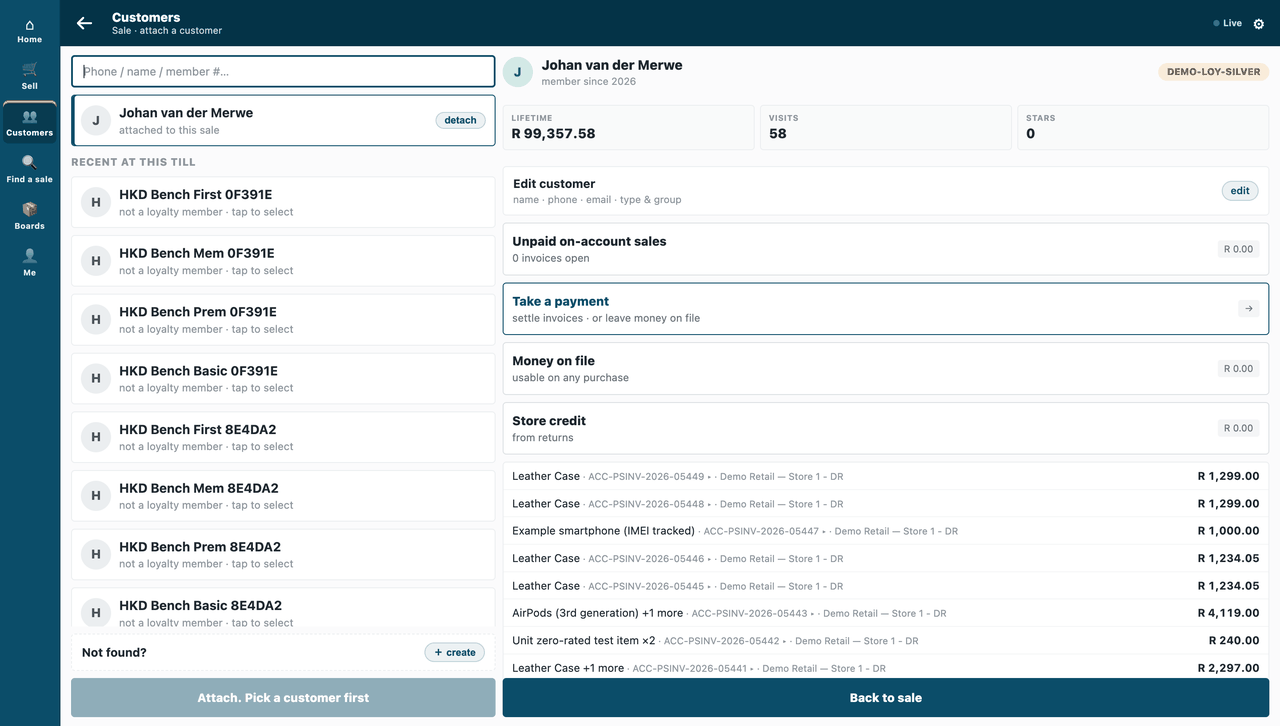
On the till, extra fields: sample S21.
Picture 7
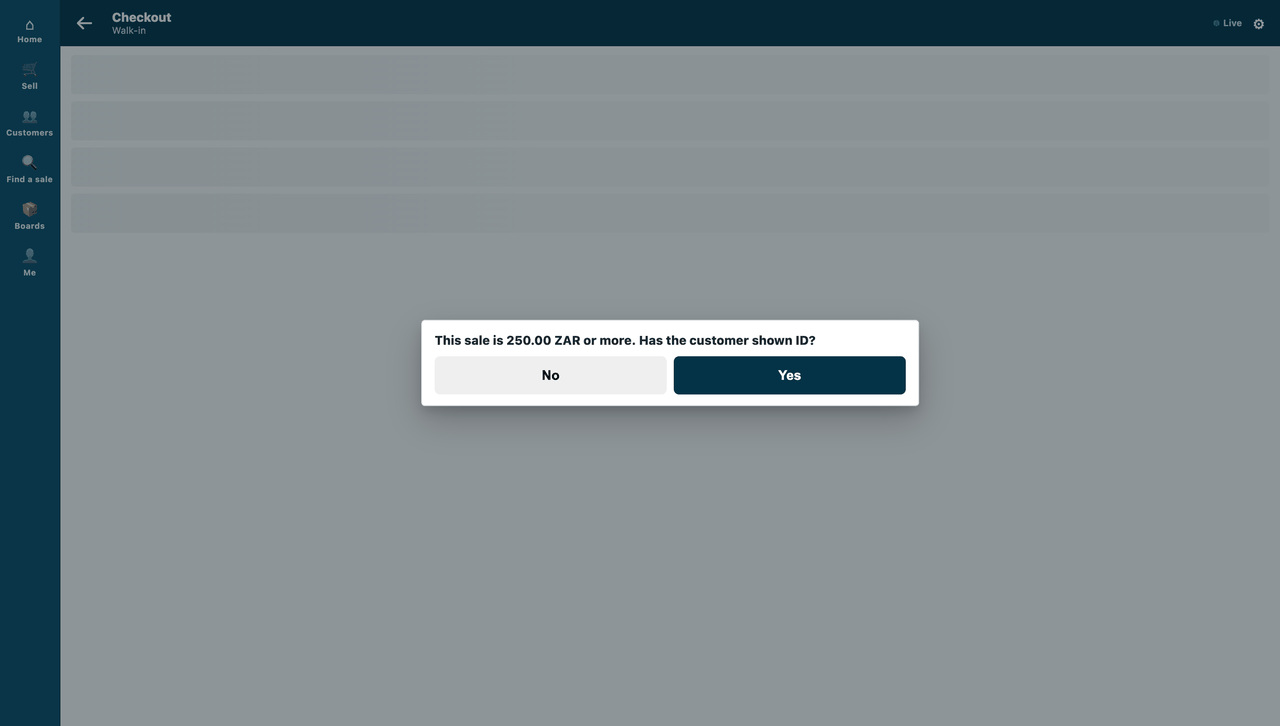
On the till, a question or a refusal before Pay: sample S18.
Picture 8
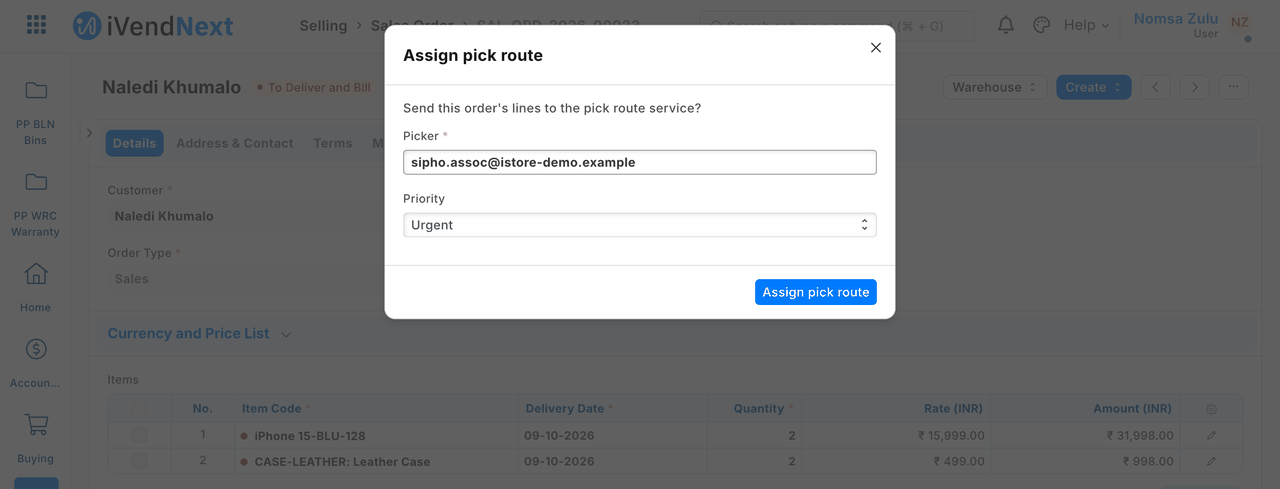
In Desk, a button and its dialog: sample S16.
Picture 9
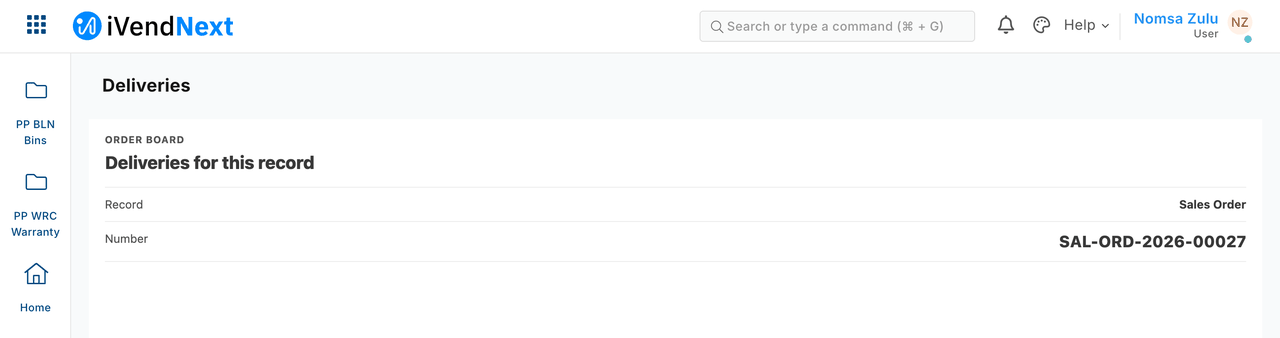
In Desk, your own page: sample S17.
Picture 10
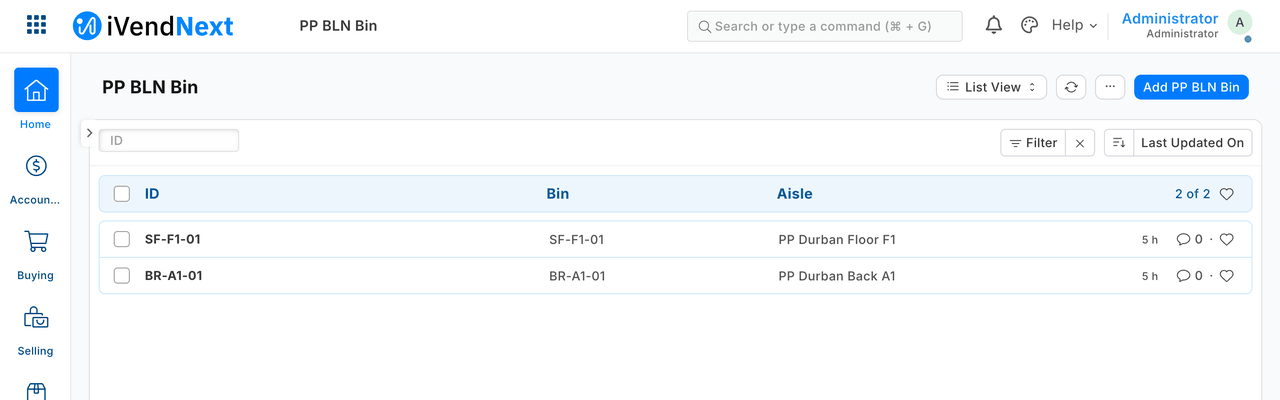
In Desk, native screens for your records: sample S2.
Picture 11
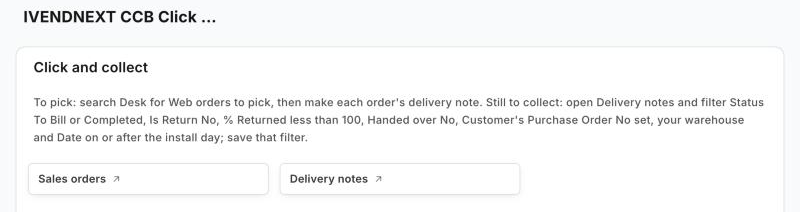
In Desk, your workspace: sample S33.
Picture 12
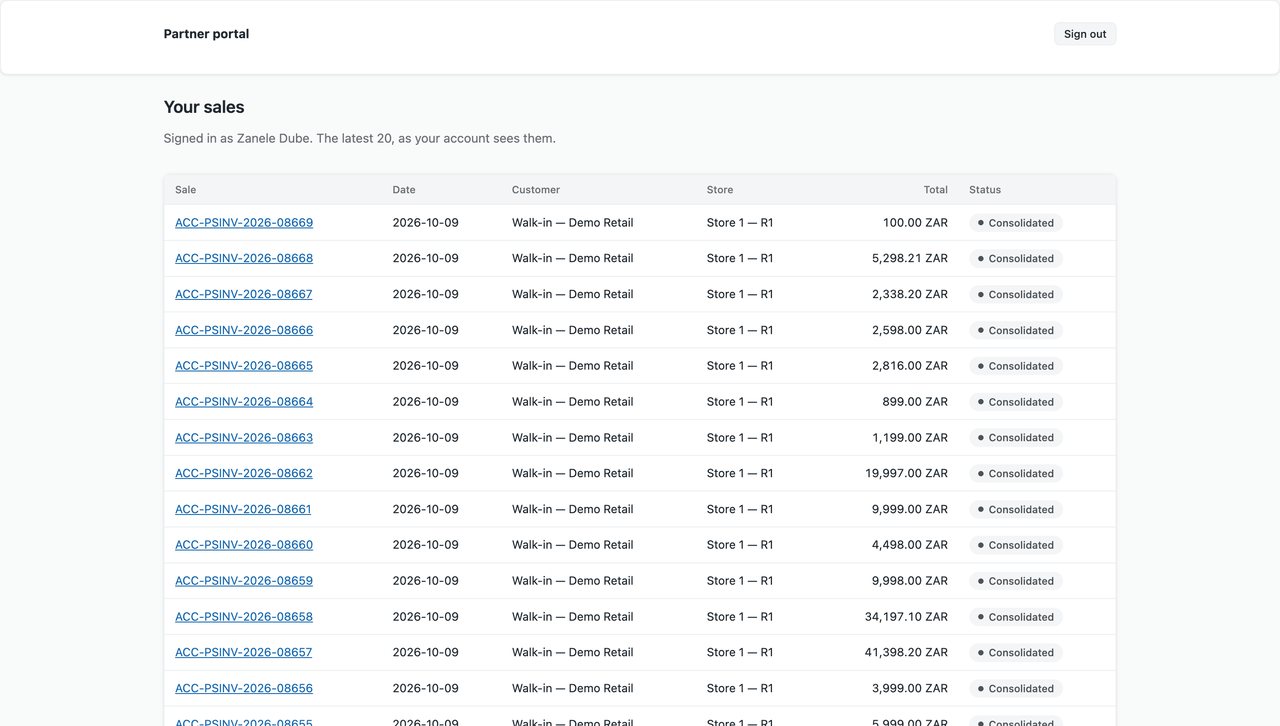
On its own, a standalone page: sample S13.
Record types and fields
Every record type an app commonly reads or writes, with each field: its type, whether it is required or read-only, and what it links to. Record types: what your app can read and write.
Next: Build your first app.